Crafting the Perfect Mobile Device Management Profile (Complete Guide)
With businesses increasingly relying on mobile technologies to support hybrid workforces, securing and managing employee devices is more critical than ever. A well-crafted mobile device management profile is the cornerstone of a streamlined and secure IT environment. In this guide, we at Circuit Minds will show you exactly how to build the perfect MDM profile that aligns with your organisational goals.
What is a Mobile Device Management profile?
A mobile device management (MDM) profile is a set of configurations and policies installed on a user's device that governs how the device behaves in a corporate environment. These profiles cover security restrictions, Wi-Fi settings, app permissions, VPN configurations and access controls. Organisations typically deploy them through Microsoft Intune or a comparable MDM solution to maintain device compliance and security.
Why MDM profiles matter
Effective MDM profiles balance security with productivity. Key advantages include:
- Enhanced data security through enforcement of encryption and password policies
- Streamlined device provisioning for faster onboarding of new employees
- Application control to ensure only approved apps are used
- Remote capabilities like device wipe and app rollouts
Key elements of a perfect MDM profile
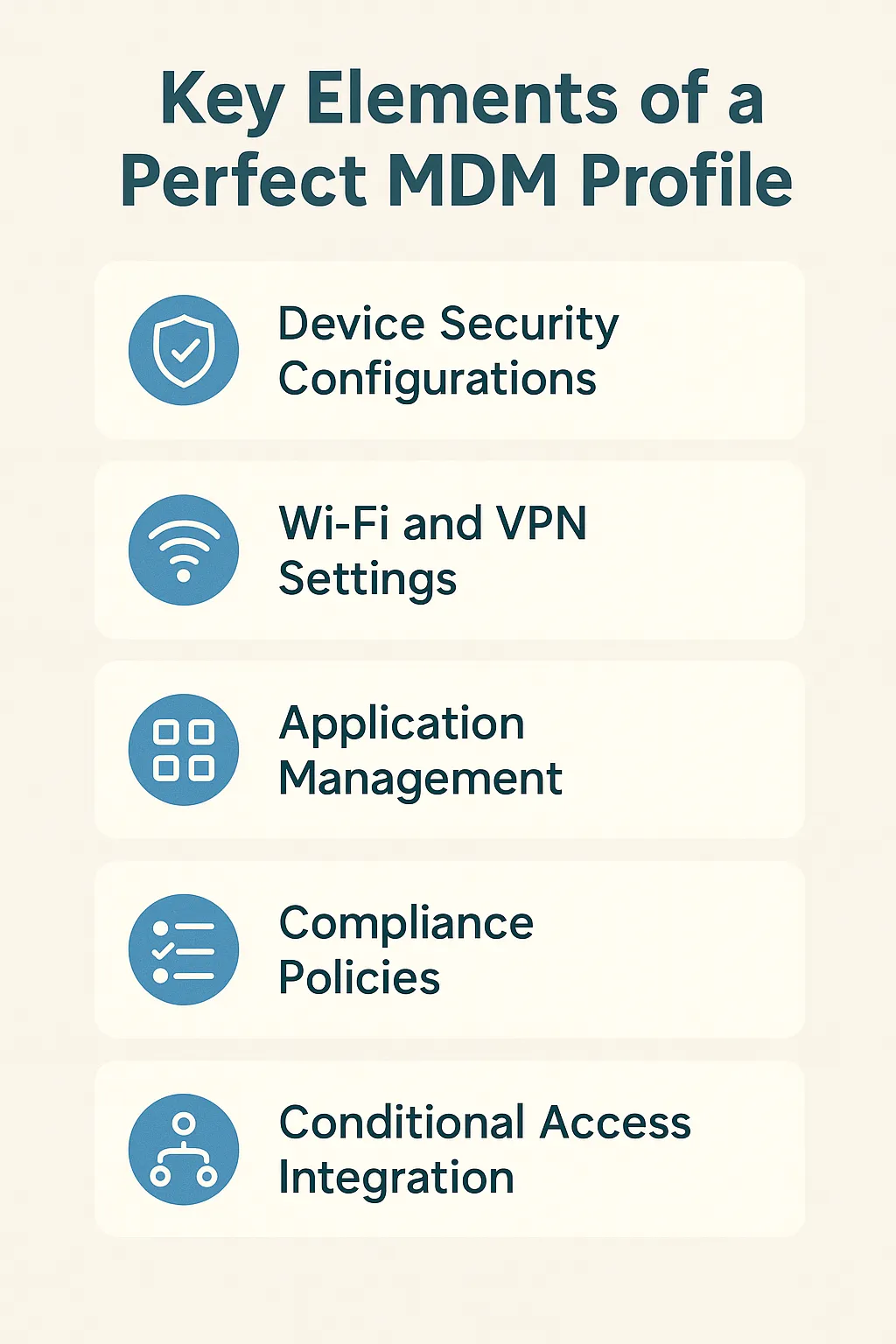
1. Device security configurations
Require strong passcodes, enforce encryption, disable screen captures and set automatic lockouts after inactivity to protect corporate data when devices are lost or stolen.
2. Wi-Fi and VPN settings
Pre-configuring corporate Wi-Fi networks and VPN connections gives employees secure access to internal resources without manual setup, improving both security and user experience.
3. Application management
Use Microsoft Intune to whitelist approved applications and prevent unauthorised third-party installations. Custom business applications can be silently deployed and updated.
4. Compliance policies
Establish compliance rules including minimum OS versions, jailbroken/rooted device detection and device health reporting. Non-compliant devices can be automatically restricted from accessing business resources.
5. Conditional Access integration
Combine MDM profiles with Conditional Access policies in Microsoft Entra ID (formerly Azure AD) to enforce access decisions based on device compliance status.
Creating and deploying the profile
The deployment process through Microsoft Intune follows these steps:
- Log into the Intune admin center
- Navigate to Devices > Configuration profiles
- Click + Create profile and select the appropriate platform (iOS, Android or Windows)
- Choose a profile type (Security, Device restrictions, etc.)
- Configure the desired settings, name the profile and assign it to device groups
Testing your profile on a pilot group before full deployment is essential. Regular reviews and updates keep it aligned with changing compliance standards and business requirements.
Tips for ongoing MDM success
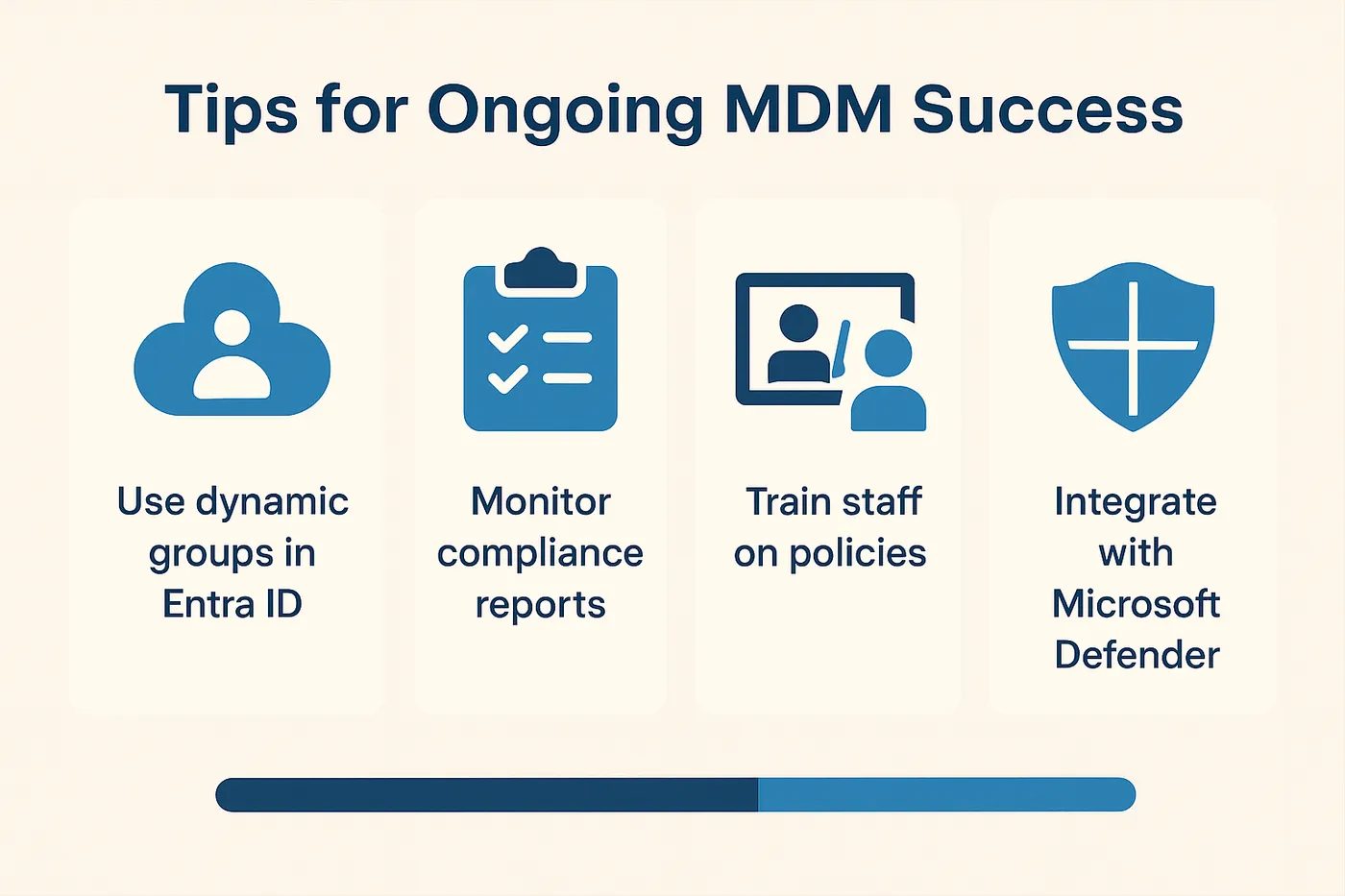
- Use dynamic groups in Microsoft Entra ID to automate device assignment based on tags or OS
- Monitor compliance reports in Intune to identify trends or issues
- Train staff on expectations and the importance of device management
- Leverage integration with Microsoft Defender for Endpoint for enhanced security monitoring
Final thoughts
Strategic MDM profile creation is a critical step towards securing the modern workplace. Well-designed profiles ensure that efficiency and protection work together to support remote staff and manage mobile device fleets effectively.
Need help building or optimising your MDM strategy? Explore our Microsoft Intune consultancy or book a free consultation to learn how Circuit Minds can help you.
Want this handled for you?
Circuit Minds is a UK managed IT provider - plans from £35 per user/month, with a free Microsoft 365 security audit to start. Cancel with 30 days notice anytime in your first 3 months, no questions asked.