How to Implement Zero-Touch Provisioning for Staff Using Microsoft Endpoint Manager
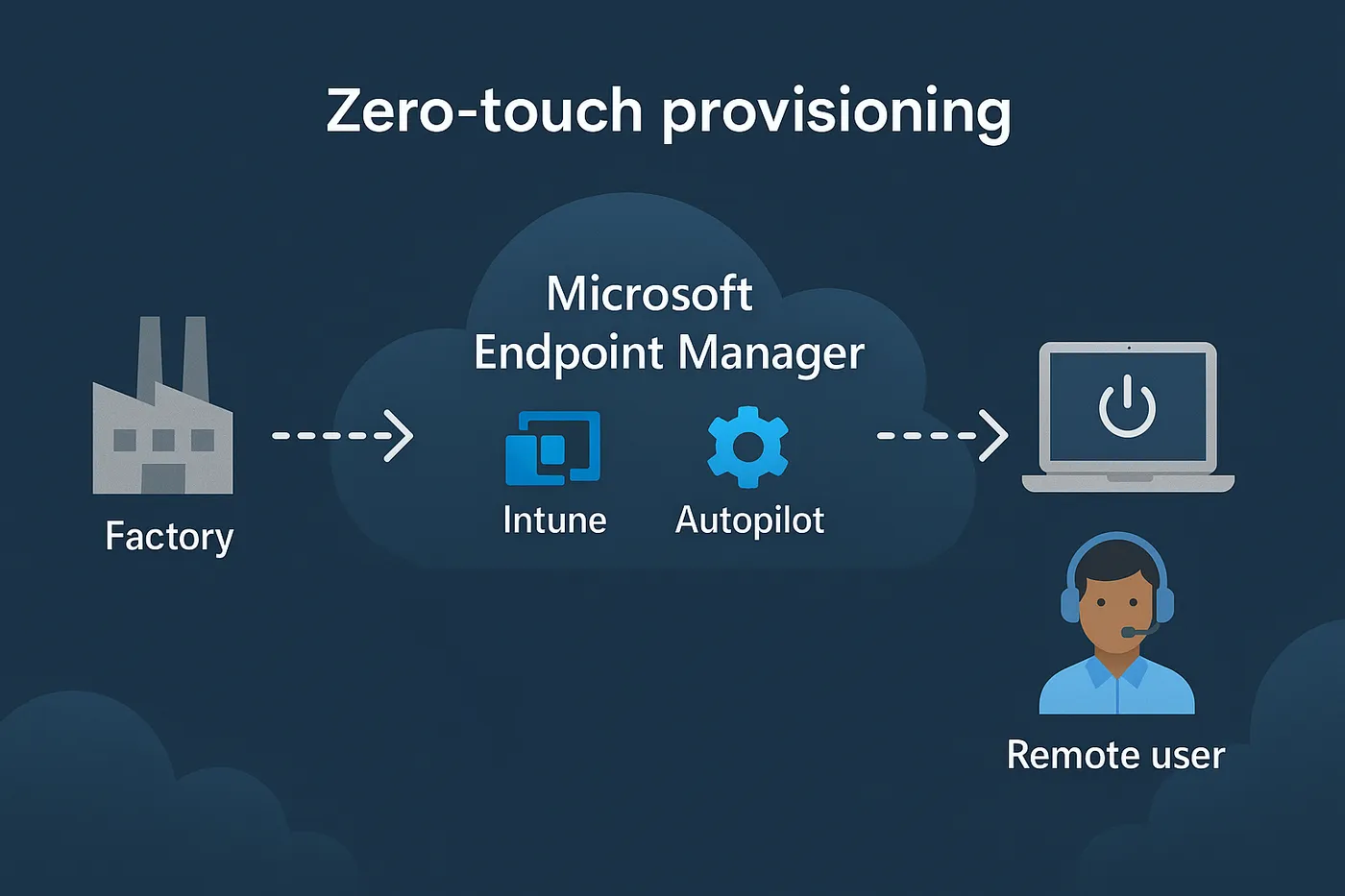
Zero-touch provisioning (ZTP) is the process of setting up user devices — such as laptops, tablets or smartphones — without the need for manual setup by IT. Devices are shipped directly to employees and, when powered on and connected to the internet, they automatically configure themselves with the necessary policies, apps and security profiles.
ZTP improves onboarding efficiency, reduces IT overhead and enhances the end-user experience. In Microsoft's ecosystem, this is achieved using Microsoft Endpoint Manager (MEM), which includes tools like Intune and Autopilot.
Why implement zero-touch provisioning with Microsoft Endpoint Manager?
- Streamlined onboarding process for remote and hybrid workers
- Consistent device configurations aligned to corporate compliance standards
- Reduced manual workload for IT staff
- Improved user satisfaction and faster productivity from day one
- Better security through policy enforcement right from initial boot
Prerequisites for zero-touch provisioning
Before implementing ZTP via Microsoft Endpoint Manager, ensure the following:
- Devices support Windows Autopilot
- You have access to Microsoft Intune (part of Microsoft Endpoint Manager)
- Devices are registered with Autopilot using their hardware ID, or obtained directly via OEM vendors
- Microsoft Entra ID (formerly Azure AD) setup is complete — ideally with hybrid or full Entra join enabled
Step-by-step guide: how to implement zero-touch provisioning for staff
Step 1: Register devices with Windows Autopilot
Start by registering the user devices into Windows Autopilot. This can be done in several ways:
- Upload the device hardware hash (CSV) into the Microsoft Endpoint Manager admin centre
- Purchase devices from a reseller or OEM who supports Autopilot registration, and request that they pre-register the devices
Step 2: Create Autopilot deployment profiles
Deployment profiles define how the device behaves during the out-of-box experience (OOBE). Navigate to Devices > Windows > Windows enrollment > Deployment Profiles in the Endpoint Manager admin centre.
Configure the following settings:
- Join Microsoft Entra ID or a hybrid domain
- Skip or automate privacy settings and out-of-box screens
- Pre-assign a user if required, or enable self-deployment mode
Step 3: Assign users and groups to Autopilot profiles
For personalised provisioning, assign the profile to the relevant user groups. This ensures the right configurations go to the right users depending on their department or role.
Step 4: Configure applications and security policies
Head to Apps > Windows in Endpoint Manager to assign the necessary apps — such as productivity tools (Microsoft 365), communication apps and antivirus software. You'll also want to ensure that compliance policies and configuration profiles are enforced. These include:
- Wi-Fi and VPN configurations
- BitLocker encryption policies
- Endpoint protection settings
- Browser security and patch configurations
Step 5: Test your setup
It's crucial to test the complete user flow before rolling out at scale. Assign a test device and user, then go through the provisioning process to ensure everything works as expected — from Autopilot registration to application deployment and policy application.
Step 6: Ship devices to users
Once tested, ship the devices directly to your employees. When they turn on the device and connect it to the internet, the Autopilot experience will handle the rest: enrolling the device in Intune, applying settings, and getting the machine ready without IT intervention.
Optional enhancements
To improve the provisioning experience even further:
- Use White Glove (pre-provisioning) mode so devices arrive with apps and settings already prepared
- Integrate with Windows Hello for Business for secure user sign-in
- Enable Conditional Access to control device and user access based on compliance status
Common pitfalls to avoid
- Failing to register devices before shipment — they won't be recognised in Autopilot
- Incorrect assignment of deployment profiles
- Overcomplicated provisioning — aim for essential apps first, and expand later
- Skipping tests — testing is crucial to ensure a smooth rollout
Why work with Circuit Minds?
Implementing consistent, secure, zero-touch provisioning requires a deep understanding of Microsoft Endpoint Manager, application lifecycles and compliance frameworks. At Circuit Minds, we help businesses of all sizes unlock the full potential of automation in device provisioning — saving time and delivering a world-class employee experience from day one.
Whether you're rolling out 10 laptops or 1,000, we'll help you streamline your IT operations for scaling success. Explore our Microsoft Intune consultancy or book a free consultation to get started.
Want this handled for you?
Circuit Minds is a UK managed IT provider - plans from £35 per user/month, with a free Microsoft 365 security audit to start. Cancel with 30 days notice anytime in your first 3 months, no questions asked.