How to Control App Access on Staff Devices Using Microsoft Intune
When staff members have unrestricted access to third-party applications, or can download unapproved software, several organisational risks emerge. Microsoft Intune gives you the tools to manage exactly which apps can be used on staff devices — and how they can access your data. This guide walks through why app access control matters and how to implement it step by step.
Why controlling app access matters
Unrestricted app access creates real problems:
- Data leakage: sensitive company data might be saved or shared using insecure apps
- Compliance risks: non-compliance with industry regulations due to the use of non-sanctioned apps
- Security threats: malware or vulnerabilities introduced through unvetted applications
- Reduced productivity: access to distracting or non-work-related applications
Microsoft Intune addresses these challenges through a suite of policies and controls tailored to secure and manage application access.
Step-by-step: how to control app access on staff devices with Microsoft Intune
1. Configure App Protection Policies
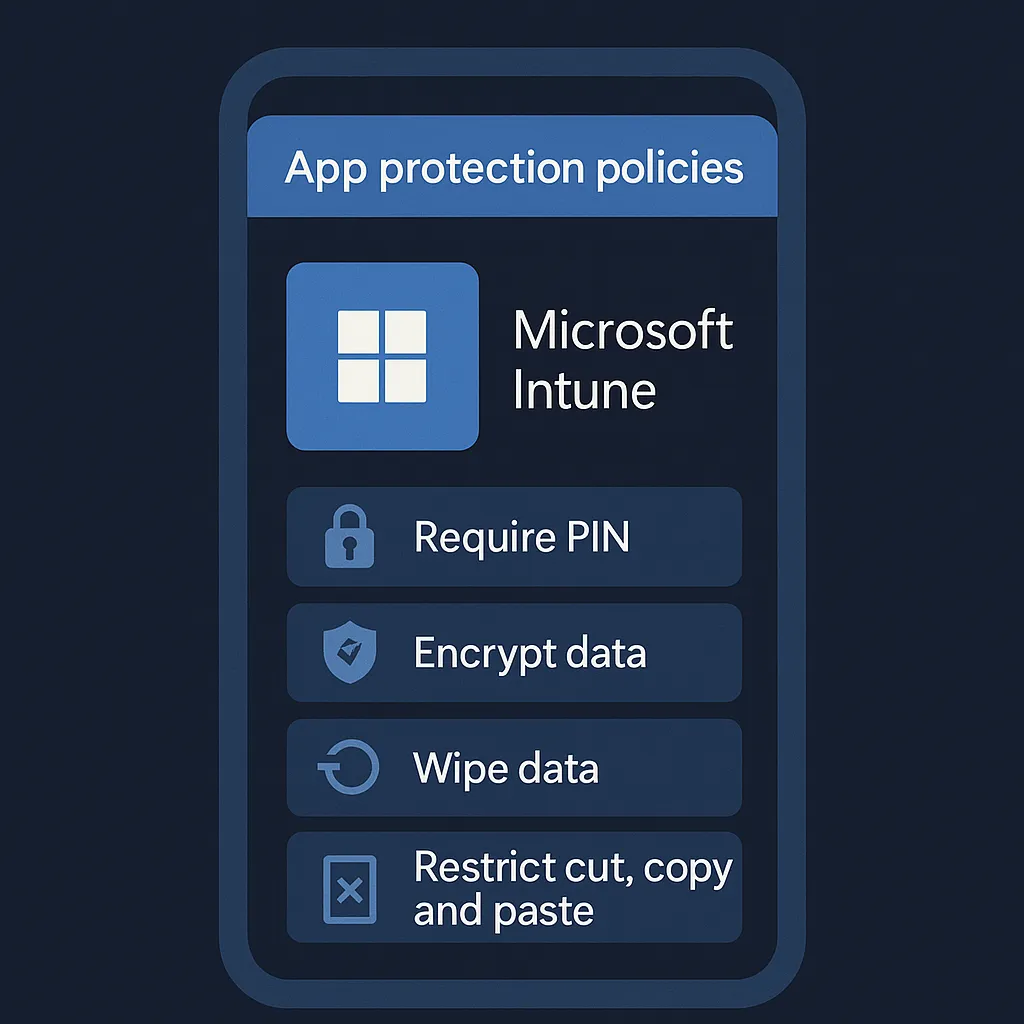
App Protection Policies (APP) help protect company data within approved applications — particularly useful in BYOD (bring your own device) scenarios where devices aren't fully managed. These policies ensure that data accessed via work applications is controlled, even without device-level control.
Protection capabilities include:
- Restrict copy/paste between apps
- Encrypt app data at rest
- Require a PIN to access apps
- Wipe corporate data if the app becomes non-compliant
Create protection profiles by navigating to Apps > App protection policies and assigning them to the user groups that need access restrictions.
2. Implement Mobile Application Management (MAM)
Mobile Application Management ensures business applications are separated from personal data and apps on employee devices. With MAM, even when staff bring their own devices, you can still control the apps they use for work without managing the complete device.
Set MAM policies to:
- Control which apps can access work data
- Block backup of company data to cloud storage (like iCloud or Google Drive)
- Deploy wipe commands for corporate data only
3. Use Conditional Access policies
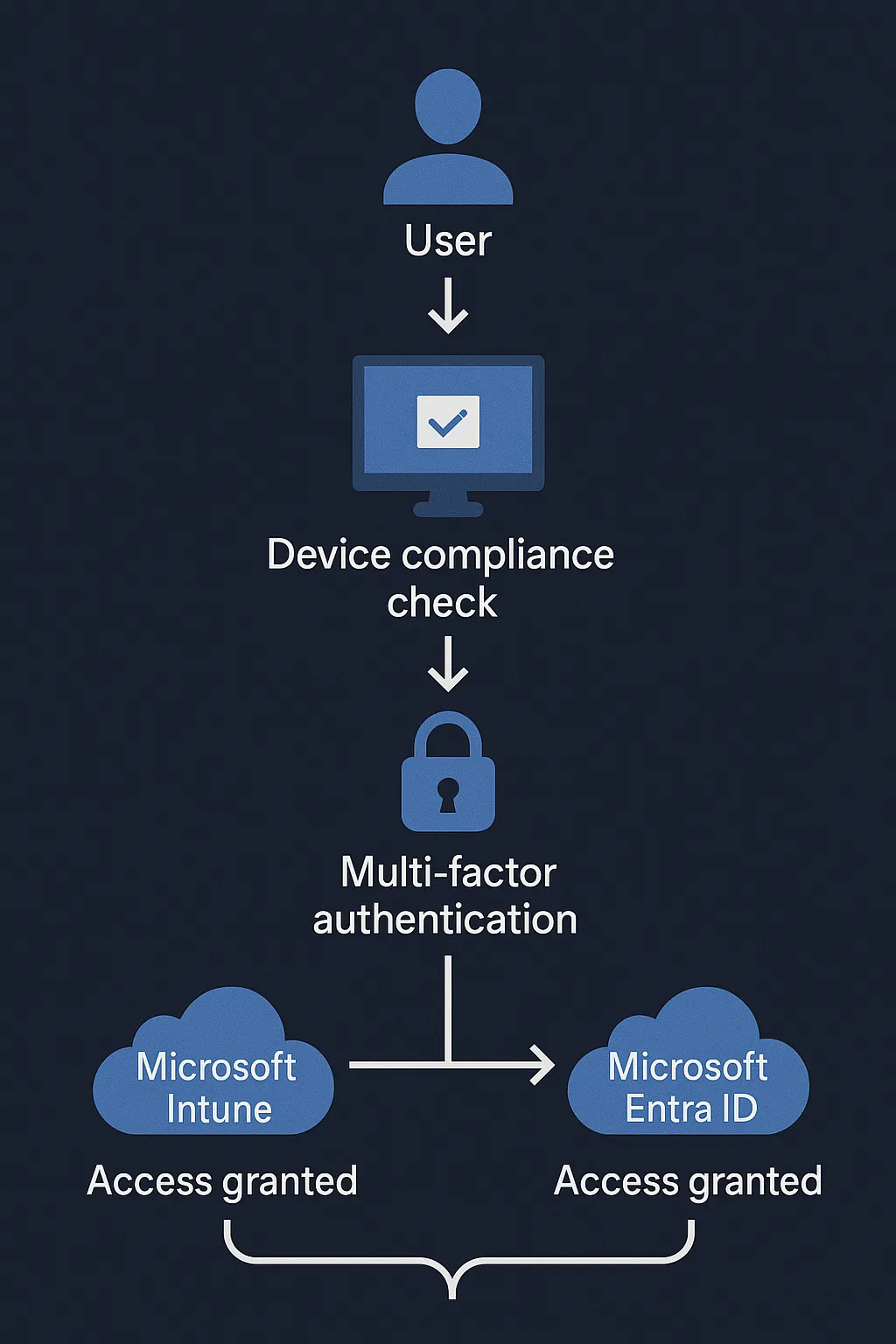
Conditional Access (CA) policies work with Microsoft Entra ID (formerly Azure AD) to make access to apps dependent on conditions such as user role, device compliance, location or risk level.
Example applications include:
- Only allow app access from compliant devices
- Deny access from unmanaged or jailbroken/rooted devices
- Prompt multi-factor authentication for high-risk logins
To configure, go to Microsoft Intune > Endpoint security > Conditional Access and create policies aligned with your security needs.
4. Control app deployment through a managed app store
Microsoft Intune allows admins to provide a curated set of applications users are permitted to install and use. Deploy only whitelisted apps through:
- Microsoft Store for Business (on Windows)
- Apple VPP (Volume Purchasing Program) for iOS/iPadOS
- Managed Google Play for Android
These integration channels ensure apps are pre-approved, automatically provisioned, and update-managed within Intune.
5. Create device compliance policies
In addition to app-specific controls, robust device compliance policies can indirectly limit access. By marking devices as non-compliant if they don't meet certain criteria (for example, OS version or encryption enabled), users won't be able to use apps until they address those issues.
This adds an extra layer of assurance — only secure, up-to-date, governed devices can access corporate applications.
6. Monitor access and usage with reporting
Intune's built-in analytics and reporting capabilities give organisations visibility into how apps are being used, what versions are installed, and which access control policies are applied. Use these tools to regularly audit access, adjust policies and maintain compliance.
Best practices to enhance app access control
- Start with a baseline policy: cover all users with minimum security requirements
- Audit app usage: remove unused or redundant app assignments frequently
- Use least privilege access: grant the minimum access necessary to perform tasks
- Enforce app updates: keep all apps patched against new vulnerabilities through update policies
Final thoughts
Understanding how to control app access on staff devices is crucial for maintaining data integrity and workplace productivity. Microsoft Intune offers a comprehensive toolkit that enables businesses to manage and secure application access across a variety of devices. From App Protection Policies to Conditional Access, the right strategies will ensure staff stay productive without sacrificing security.
If implementing Intune still feels overwhelming, Circuit Minds can help. As Microsoft 365 and Azure specialists, we guide businesses of all sizes through planning, implementing and maintaining a secure, compliant endpoint ecosystem - see our Microsoft Intune consultancy or book a free consultation.
Want this handled for you?
Circuit Minds is a UK managed IT provider - plans from £35 per user/month, with a free Microsoft 365 security audit to start. Cancel with 30 days notice anytime in your first 3 months, no questions asked.