How to Enforce Device Compliance in Microsoft 365 Using Intune and Conditional Access
Device management and compliance have become essential priorities for organisations transitioning to Microsoft 365, particularly as remote work and diverse device usage become standard. Implementing robust device compliance strategies ensures only secure devices can access corporate resources — critical for modern security environments.
What is device compliance in Microsoft 365?
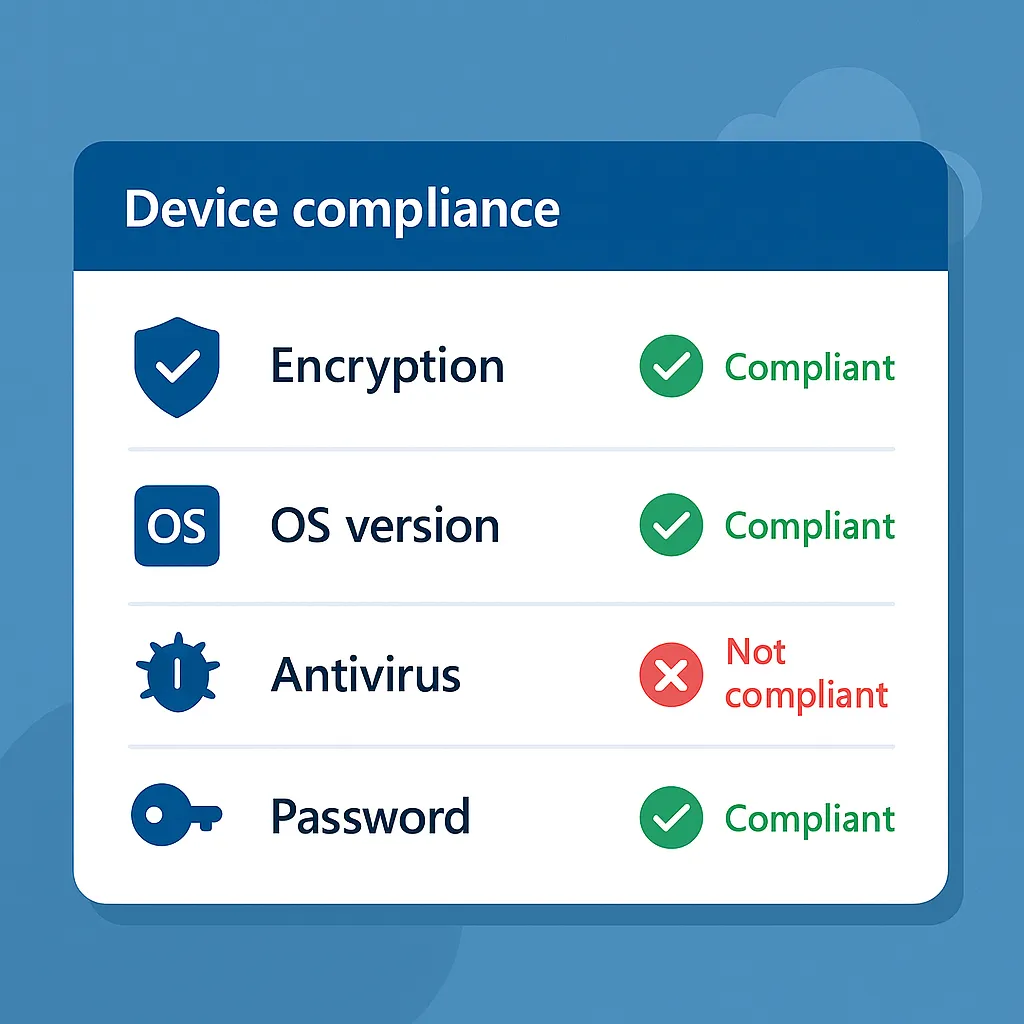
Device compliance involves enforcing specific policies that endpoints must satisfy before accessing organisational resources. These policies typically include:
- Device encryption
- Operating system version control
- Antivirus and antimalware status
- Password and lock screen policies
- Jailbreak or rooting detection
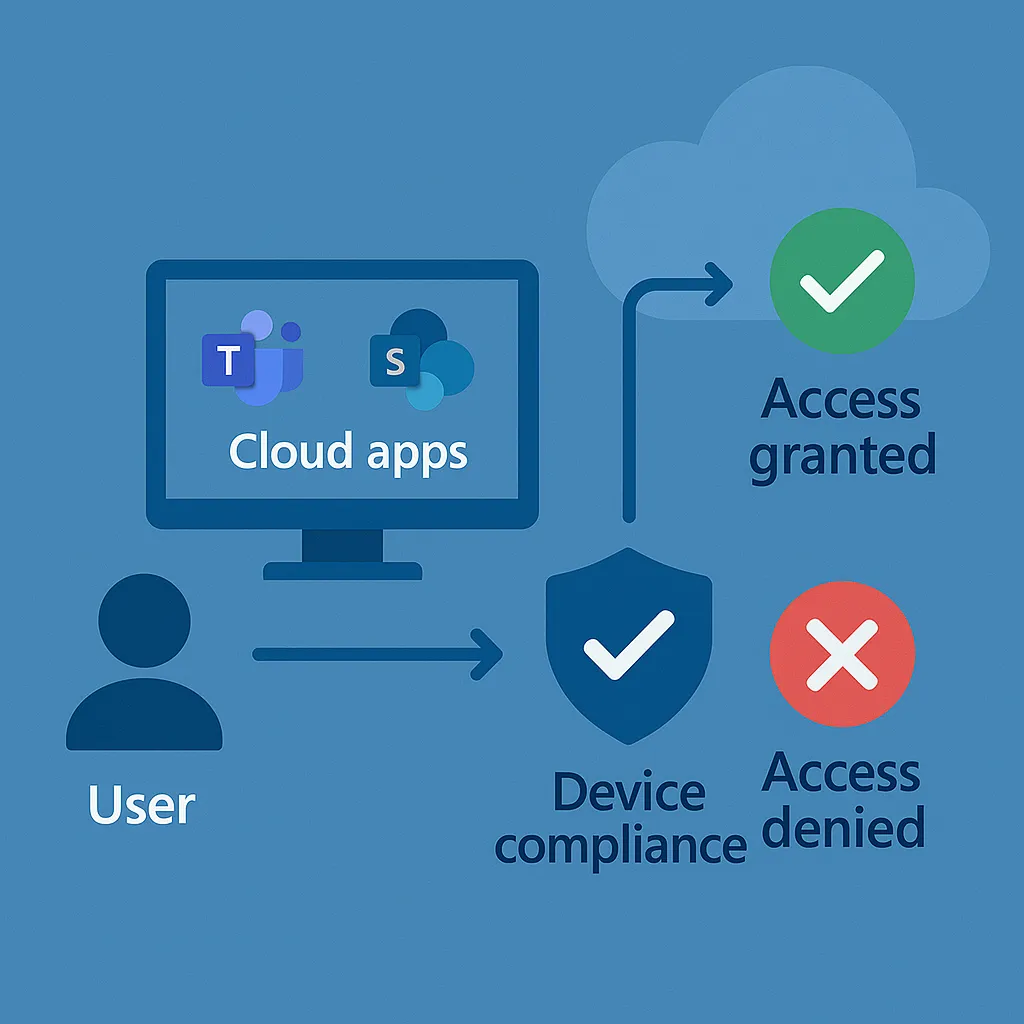
A compliant device adheres to the defined requirements, while non-compliant devices can be blocked from accessing resources like Exchange Online, SharePoint or Teams through Conditional Access.
Why you need device compliance in Microsoft 365
Traditional perimeter-based security no longer suffices against evolving threats. Key benefits of enforcing device compliance include:
- Restricting corporate data access to trusted devices only
- Implementing granular access control via Conditional Access
- Automating security enforcement without disrupting user workflows
- Meeting regulatory requirements such as ISO 27001, GDPR and NIST standards
How to enforce device compliance in Microsoft 365
Step 1: Set up Microsoft Intune
Before creating compliance policies, configure Microsoft Intune within your tenant:
- Access the Microsoft Intune admin center
- Under Tenant administration, select Connectors and tokens to verify active connections
- Enrol devices using the Company Portal app from the appropriate app store
Step 2: Create compliance policies in Intune
Define compliance requirements by establishing device compliance policies:
- Navigate to Devices > Compliance policies in the Intune admin center
- Click Create policy and select your platform (Windows, iOS, macOS, Android)
- Configure requirements such as PIN requirements, encryption and current OS versions
- Assign the policies to user or device groups
For Windows, for example, you might require BitLocker encryption and active, up-to-date Defender antivirus protection.
Step 3: Configure Conditional Access
Enforce your compliance policies using Conditional Access in Microsoft Entra ID (formerly Azure AD) to evaluate device compliance before granting resource access:
- Go to Microsoft Entra ID > Security > Conditional Access
- Click New policy to begin
- Specify the user or group scope (e.g. all employees)
- Define the applicable cloud apps (e.g. SharePoint Online, Teams)
- Under Conditions > Device platforms, select the desired platforms
- Under Access controls > Grant, select Grant access and tick "Require device to be marked as compliant"
- Enable and monitor the policy
Step 4: Test and monitor compliance
Before full rollout, pilot your compliance and Conditional Access policies with a select group of users:
- Verify devices are enrolled and compliant
- Confirm access is granted or blocked appropriately
- Use the sign-in logs in Microsoft Entra ID to troubleshoot access issues
- Monitor compliance reports regularly in Intune
Conduct regular internal security reviews to adjust for emerging threats or evolving organisational needs.
Common use cases for enforcing device compliance
Real-world applications include:
- Education: restricting students to school-issued, compliant laptops
- Legal: ensuring BYOD devices have encryption and password protection
- Healthcare: meeting HIPAA compliance by enforcing device security for patient record access
- Finance: blocking financial app access unless antivirus is current
Best practices for success
- Develop platform-specific policies reflecting OS differences
- Use exclusion groups sparingly, for service accounts or special cases
- Regularly audit compliance settings as device fleets and threats evolve
- Keep users informed through support documentation and guidance
Final thoughts
Device compliance is an essential component of contemporary IT security. Microsoft Intune and Conditional Access enable organisations to ensure only secure, well-managed devices access corporate data — reducing risk while improving visibility and supporting regulatory compliance, all without sacrificing IT control or user accessibility.
Need a hand implementing compliance policies and Conditional Access? Explore our Microsoft Intune consultancy or book a free consultation to see how Circuit Minds can help.
Want this handled for you?
Circuit Minds is a UK managed IT provider - plans from £35 per user/month, with a free Microsoft 365 security audit to start. Cancel with 30 days notice anytime in your first 3 months, no questions asked.