How to Deploy Laptops to Remote Teams Automatically Using Microsoft Autopilot and Intune
Traditional IT setup processes typically involve imaging, manual configuration and shipping delays. This outdated approach results in:
- Inconsistent configurations
- Delays in employee productivity
- Increased helpdesk tickets and IT overhead
Microsoft Autopilot and Intune streamline deployment by allowing end users to receive new devices directly from the OEM, power them on, and start working immediately — with all the required apps, settings and security policies in place.
What is Microsoft Autopilot?
Windows Autopilot is a collection of technologies from Microsoft that set up and pre-configure new devices for productive use. It allows IT teams to:
- Register devices before they ship
- Apply user-specific configuration profiles
- Enable a self-service Out-of-Box Experience (OOBE)
With Autopilot, there's no need for IT to manually prepare devices before handing them to employees — making it a perfect fit for remote teams.
What is Microsoft Intune?
Microsoft Intune is a cloud-based endpoint management solution that allows you to manage user access and simplify app and device management across your organisation. It integrates seamlessly with Autopilot to enforce policies, deploy software and monitor compliance — without requiring physical access to the device.
Steps: how to deploy laptops to remote teams automatically
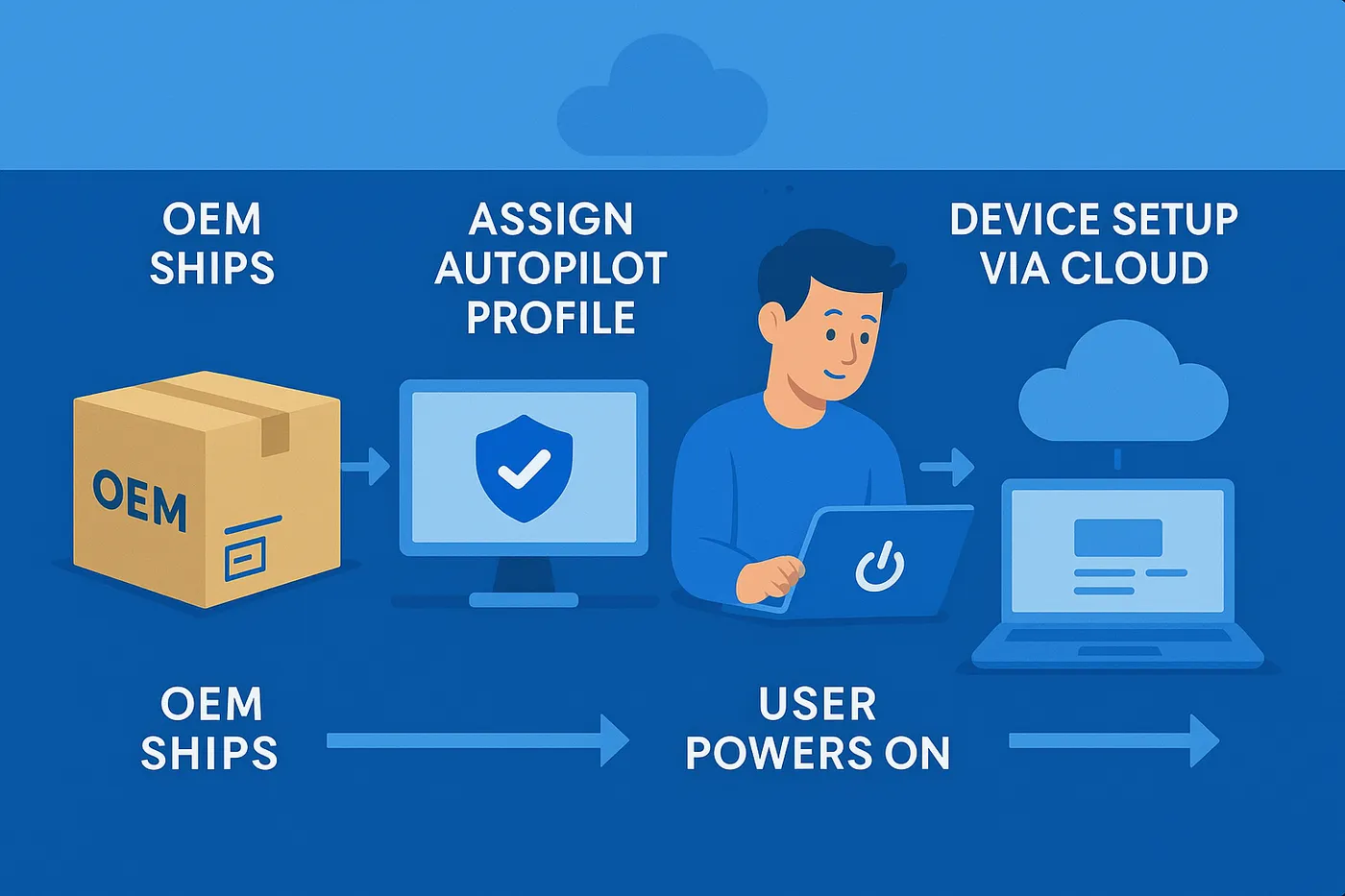
1. Purchase devices from an Autopilot-capable OEM
Make sure your hardware vendor supports Autopilot. When ordering new laptops, request that they register the device hardware IDs (hashes) with your Microsoft tenant. This eliminates the need for you to touch the devices before shipment.
2. Register devices in Autopilot
If you're uploading devices manually, extract the hardware hash using the Windows Autopilot diagnostics tool or script, and upload it via the Microsoft Endpoint Manager admin centre.
3. Create Autopilot deployment profiles
Autopilot profiles define how devices are configured during the out-of-box experience. Typical profile options include:
- Automatic device naming
- User-driven deployment mode
- Microsoft 365 account sign-in requirements
- Skipping privacy settings, licence agreement and Cortana prompts
Assign the profile to the group of devices or users receiving their new laptops.
4. Configure Microsoft Intune policies
Next, configure endpoint management policies via Intune. Key areas include:
- Compliance policies — ensure devices meet your security standards
- Configuration profiles — deploy Wi-Fi, email, VPN and BitLocker settings
- App deployment — push Microsoft 365, Teams, antivirus and any line-of-business apps
Group policies by department, region or role for efficient configuration targeting.
5. Ship devices directly to remote employees
Once the Autopilot profile and Intune configurations are applied, you're ready to ship. Devices go directly to the employee's home or remote location. When the laptop is powered on and connected to the internet, it automatically:
- Applies the assigned Autopilot profile
- Installs all required apps and settings from Intune
- Enforces compliance and security controls
No IT personnel required. No misconfiguration. Just seamless productivity.
Benefits of using Autopilot and Intune for remote laptop deployments
By adopting this modern provisioning approach, you gain:
- Zero-touch provisioning — no need for IT to unbox or image devices
- Scalable setup — onboard one or 1,000 users with the same effort
- Faster time to productivity — devices are fully configured from first logon
- Improved endpoint security — compliance policies enforced remotely
- Reduced IT workload — less manual configuration, more strategic focus
Best practices when automating remote laptop deployment
- Keep Autopilot and Intune profiles updated — review and update configurations regularly to align with changing company policies or software requirements.
- Test with pilot groups — before pushing configurations company-wide, test on sample devices or select departments.
- Communicate clearly with users — provide setup instructions or a welcome guide to prepare remote employees for the Autopilot process.
- Monitor device compliance — use Intune reports to ensure devices are meeting security and management standards after deployment.
Adopting modern provisioning? Let Circuit Minds help
If you're still imaging laptops manually or navigating multiple tools to support remote work, it's time to modernise. At Circuit Minds, we help organisations implement end-to-end automated provisioning pipelines using Microsoft Autopilot and Intune — tailored to your business needs.
From selecting the right OEM partner to configuring your Autopilot and Intune environment, we streamline the entire journey, ensuring your remote teams are up and running with minimal friction. Explore our Microsoft Intune consultancy or book a free consultation to get started.
Want this handled for you?
Circuit Minds is a UK managed IT provider - plans from £35 per user/month, with a free Microsoft 365 security audit to start. Cancel with 30 days notice anytime in your first 3 months, no questions asked.