How to Secure Employee Laptops and Phones Remotely Using Microsoft 365 and Intune
With the rise of hybrid and remote working, organisations are facing an urgent challenge: how to secure employee laptops and phones remotely without slowing down productivity. With cyber threats growing in complexity and frequency, ensuring your endpoints are protected is no longer optional — it's essential. Fortunately, Microsoft 365 and Microsoft Intune offer comprehensive, cloud-based solutions to keep corporate data secure across devices, locations and platforms.
Why security needs to be remote-first
The modern workforce expects to work from anywhere. Whether it's a sales executive accessing sensitive data from a tablet or a developer logging in from a home workstation, IT administrators must ensure that all endpoints are continuously managed and secure — even outside the office firewall.
A remote-first security strategy leverages cloud-based management tools, endpoint protection and identity controls to provide seamless access while minimising risk. And this is where Microsoft 365 and Intune shine.
What is Microsoft Intune?
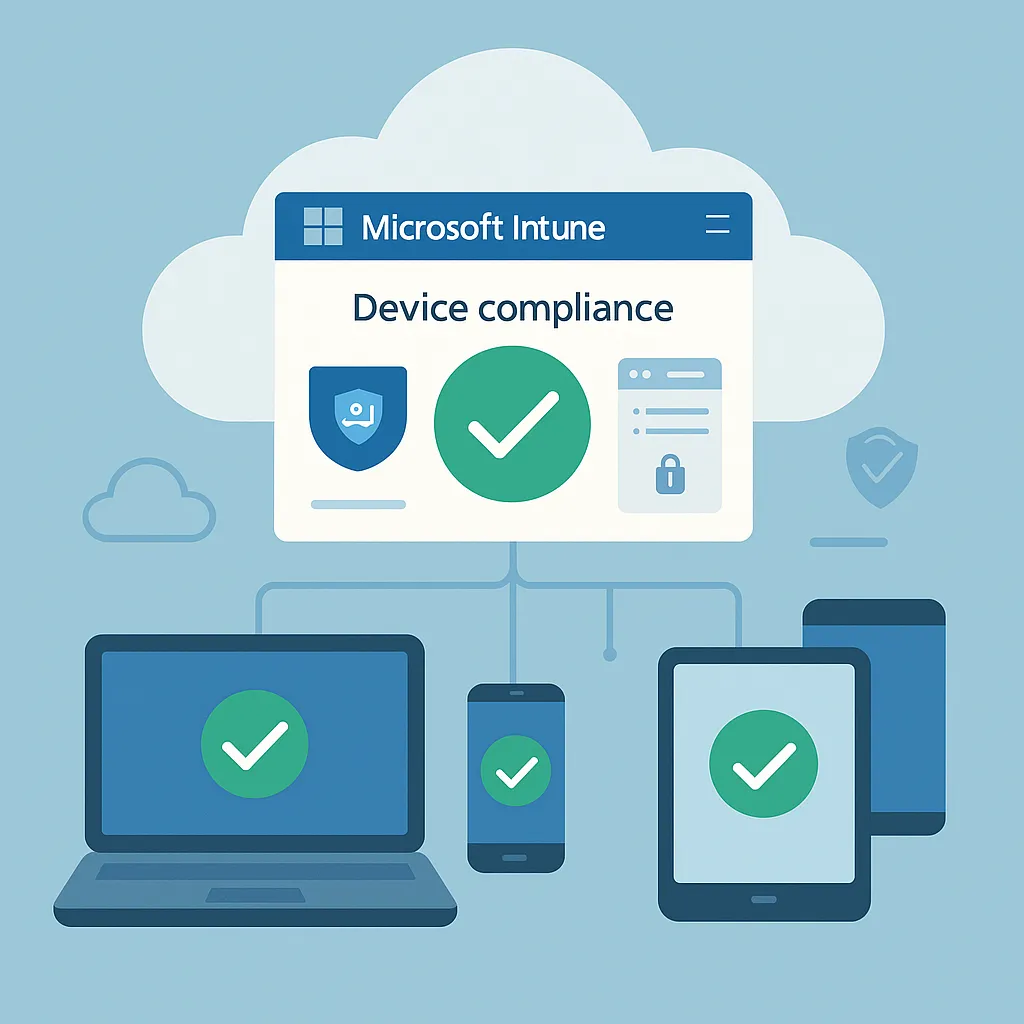
Microsoft Intune is a cloud-based endpoint management solution that lets you manage user access and protect data across all devices. It integrates fully with Microsoft 365, Microsoft Entra ID (formerly Azure AD) and Microsoft Defender for Endpoint to deliver streamlined policy enforcement and device compliance.
Intune supports:
- Windows laptops and desktops
- macOS devices
- iOS/iPadOS and Android smartphones and tablets
- BYOD (bring your own device) scenarios
Step-by-step guide: how to secure employee laptops and phones remotely
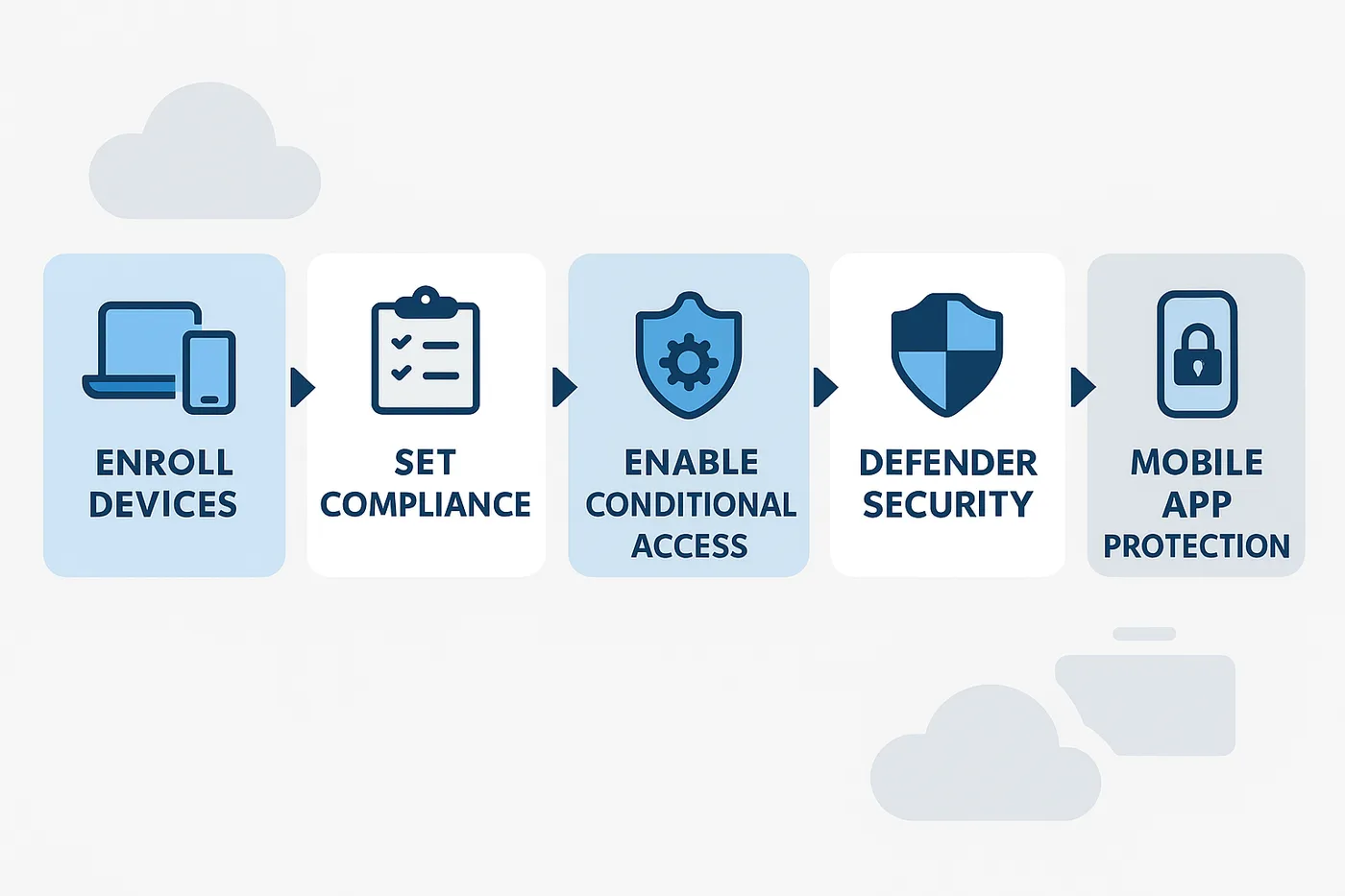
1. Enrol devices in Microsoft Intune
The first step is to enrol all devices — both company-owned and BYOD — into Intune. This can be automated using Entra ID join or manually configured for BYOD users via the Company Portal.
Enrolling a device allows IT to:
- Apply security policies and configuration profiles
- Remotely wipe corporate data if a device is lost or stolen
- Monitor compliance with company security standards
2. Define compliance policies
Compliance policies ensure that only secure, compliant devices can access Microsoft 365 services like Exchange, Teams and SharePoint. You can set rules like:
- Minimum OS version requirements
- Encryption enforcement (e.g. BitLocker)
- Password complexity and screen lock timers
Devices that don't meet the standards can be blocked from accessing company resources or prompted to remediate issues.
3. Deploy configuration profiles
These profiles allow administrators to push specific settings and restrictions to devices, including:
- Wi-Fi configurations
- VPN setup
- App install permissions
- Browser settings and homepage lock
This simplifies onboarding and ensures every device aligns with your security posture right out of the gate.
4. Enable Conditional Access in Microsoft 365
Conditional Access ensures that only trusted users on secure, compliant devices can access your company's resources. For example:
- Deny access to users signing in from high-risk locations
- Enforce MFA for access to sensitive applications
- Require device compliance for Teams or OneDrive access
Microsoft 365 integrates Conditional Access policies right from Microsoft Entra ID, ensuring tight control over how and when data is accessed.
5. Protect with Microsoft Defender for Endpoint
Once your devices are managed and access is locked down, you need to protect against advanced threats. Defender for Endpoint provides:
- Real-time antivirus and malware protection
- Endpoint detection and response (EDR)
- Threat analytics and attack surface reduction
Defender integrates with Intune to enforce security baselines across your endpoints.
6. Secure mobile devices with App Protection Policies
Smartphones and tablets pose unique challenges. Intune allows for app-level protection even on unmanaged personal devices using Microsoft 365 apps.
You can apply controls such as:
- Restricting copy/paste from corporate apps
- Encrypting app data at rest
- Wiping corporate data when an employee leaves
This ensures that sensitive data is compartmentalised, even on BYOD phones.
Best practices for remote endpoint security
- Regularly review compliance reports in the Microsoft 365 admin centre
- Use role-based access control (RBAC) to limit who can change security settings
- Implement automated threat response using Microsoft Sentinel
- Educate employees on phishing and safe device usage
- Schedule periodic audits and penetration testing for your endpoint environment
Why choose Microsoft 365 and Intune?
Here's what sets Microsoft's platform apart in securing remote devices:
- Unified management — manage PCs, Macs, iOS and Android from one dashboard
- Scalability — enterprise-grade and fully cloud-native
- Integration — deep integration with Microsoft Entra ID, Microsoft Defender and Microsoft 365
- Cost-effective — included in Microsoft 365 Business Premium and other plans
Conclusion
Securing your remote workforce doesn't have to be a logistical nightmare. By leveraging Microsoft 365 and Intune, your organisation gains full visibility and control over employee devices — no matter where they are. From enrolment to compliance enforcement, app protection and real-time threat defence, everything works cohesively in the Microsoft ecosystem.
Don't wait for a data breach to make security a priority. Secure your endpoints proactively, intelligently and remotely. See our Microsoft Intune consultancy, or book a free consultation to learn how Circuit Minds can help you.
Want this handled for you?
Circuit Minds is a UK managed IT provider - plans from £35 per user/month, with a free Microsoft 365 security audit to start. Cancel with 30 days notice anytime in your first 3 months, no questions asked.