How to Stop Ex-Employees Accessing Business Files in Microsoft 365 Securely
One of the most significant security risks facing organisations is unauthorised access by former staff. Whether intentional or accidental, ex-employees retaining access to your Microsoft 365 environment can lead to data breaches, intellectual property loss and compliance violations. With hybrid work and cloud collaboration now the norm, a robust offboarding process is essential. This guide walks through how to stop ex-employees accessing business files in Microsoft 365 — securely and repeatably.
Why secure offboarding matters
When employees leave, their digital presence persists unless it's explicitly removed: email accounts, OneDrive documents, SharePoint access, Teams conversations and more. Simply disabling an account is often not enough — particularly when identities sync from on-premises Active Directory, or when devices and mobile access were provisioned.
A deliberate offboarding protocol protects company data and keeps you compliant — particularly under frameworks like UK GDPR and ISO 27001.
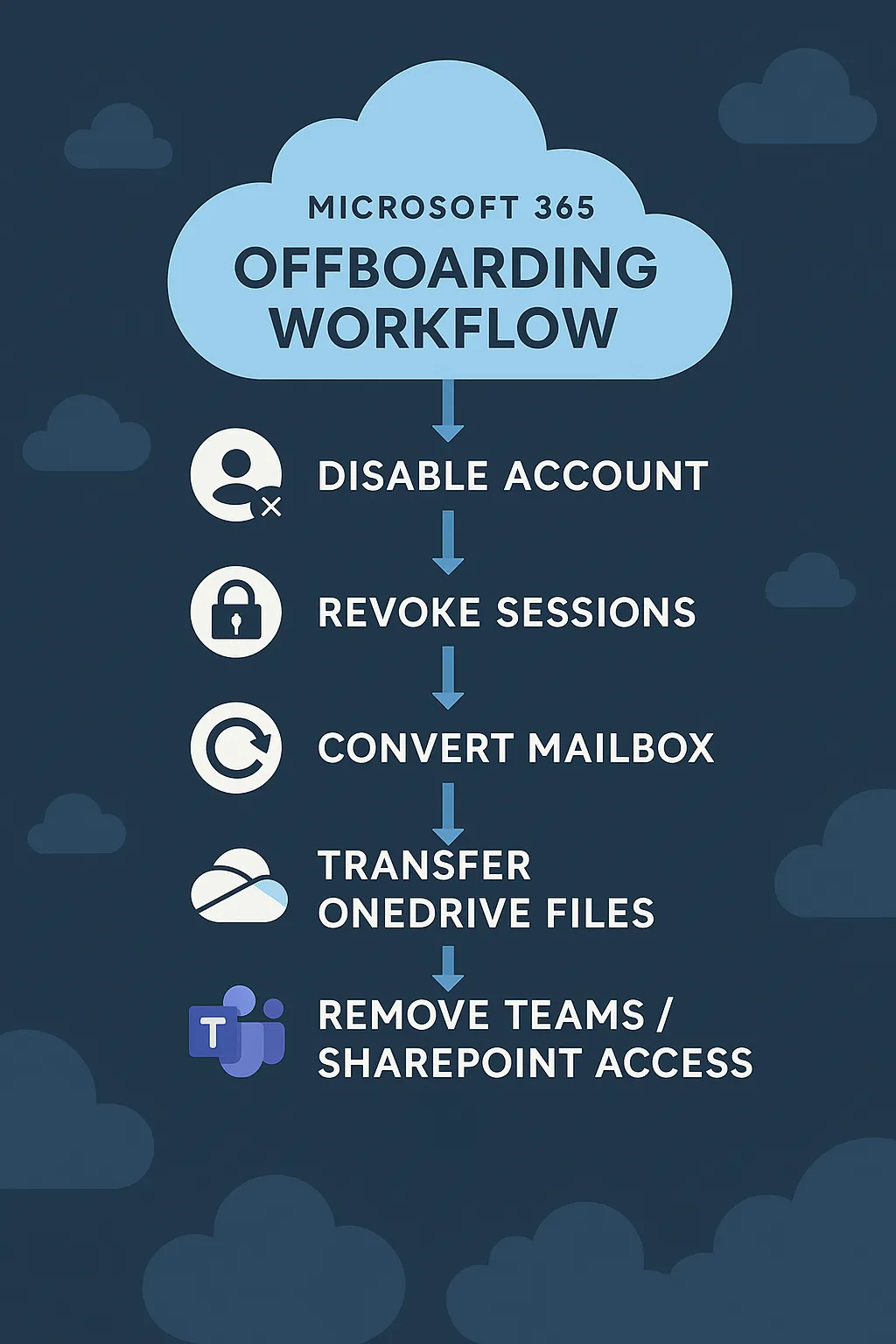
Step-by-step: how to stop ex-employees accessing business files
1. Disable the Microsoft 365 user account immediately
Start by blocking sign-in via the Microsoft 365 admin center:
- Navigate to Users → Active users
- Locate the user and open their profile
- Choose Block sign-in
This prevents further logins to email, Teams, OneDrive and other Microsoft 365 services.
2. Revoke active sessions and access tokens
Existing sessions can persist on mobile devices and desktop apps even after sign-in is blocked. Use the Microsoft Entra admin center to kill them:
- Navigate to Microsoft Entra admin center → Users
- Select the user and open their profile
- Choose Revoke sessions
3. Convert the user's mailbox to a shared mailbox
To preserve important company communications, convert the user's Exchange mailbox into a shared mailbox so colleagues can access past emails when needed:
- Go to Exchange admin center → Recipients → Mailboxes
- Select the user and choose Convert to shared mailbox
- Reassign appropriate permissions to the relevant team members
4. Transfer ownership of OneDrive files
Microsoft 365 retains a user's OneDrive contents for 30 days by default after account deletion. Before deleting the account:
- Go to Microsoft 365 admin center → Users
- Choose the employee and scroll to the OneDrive section
- Transfer ownership to a manager or another employee
5. Remove group, SharePoint and Teams access
Users may still have access to files or conversations via Microsoft Teams, SharePoint sites and Microsoft 365 Groups:
- In the Teams admin center, remove the user from teams
- In the SharePoint admin center, audit site permissions and revoke where needed
- In Microsoft 365 Groups, check all mail-enabled distribution groups
6. Remotely wipe company devices and apps
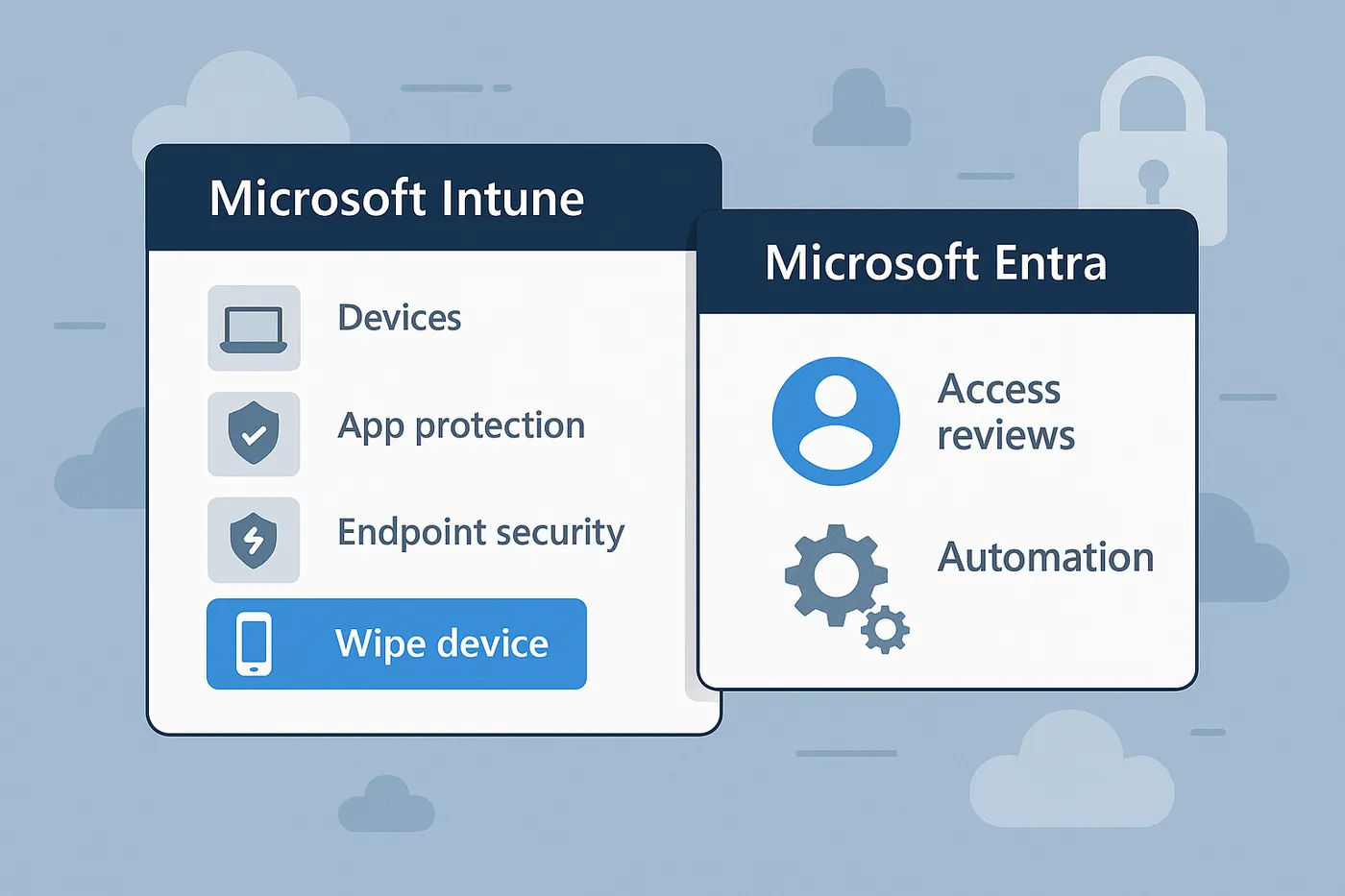
Use Microsoft Intune to wipe or retire devices enrolled in endpoint management:
- Navigate to Intune admin center → Devices
- Select the endpoints the user worked from
- Choose Wipe or Retire depending on ownership
For unmanaged personal devices, use the app-level wipe provided by Microsoft 365 App Protection Policies — corporate data goes, personal data stays.
7. Monitor for suspicious activity post-offboarding
Use Microsoft Defender to set up alerts and review audit logs for continued access attempts. Key things to watch:
- Failed login attempts
- Unusual file access patterns
- Anonymous or external sharing events
8. Automate offboarding with Microsoft 365 tools
Minimise human error and improve consistency through automation:
- Use Power Automate to trigger deprovisioning sequences
- Apply group-based licensing and dynamic groups to auto-remove access
- Use Access Reviews in Microsoft Entra to regularly audit user permissions
What about external collaborators or contractors?
For partners or freelancers with Microsoft 365 access:
- Use guest access management in Microsoft Entra
- Set expiration policies for guest accounts
- Review their file sharing and Teams channel memberships regularly
Build a secure offboarding SOP
Your IT function should maintain a consistent offboarding playbook that includes:
- Checklists for every system the user accessed
- Automated provisioning/deprovisioning scripts
- Record-keeping for audit purposes
- Review dates for departing users' resources
Relying on memory or ad-hoc messages is how access points get missed. A written, repeatable process is what closes the gap.
Final thoughts
Knowing how to stop ex-employees accessing business files in Microsoft 365 is essential in a connected workplace. A secure, repeatable offboarding process protects your data, your reputation and your compliance posture. With Microsoft 365's built-in tools — Entra, Intune, Defender and Power Automate — the whole leaver process can be systematic rather than stressful.
Need help designing and implementing a seamless offboarding process? It's built into our managed IT support - or book a free consultation and we'll walk you through it.
Want this handled for you?
Circuit Minds is a UK managed IT provider - plans from £35 per user/month, with a free Microsoft 365 security audit to start. Cancel with 30 days notice anytime in your first 3 months, no questions asked.