How to Set Up Conditional Access Policies Easily in Microsoft 365: A Step-by-Step Guide
Protecting access and securing sensitive information across your Microsoft 365 environment is a critical concern for any organisation. Conditional Access is one of the most powerful defence mechanisms available to IT administrators for restricting and monitoring user access. It lets IT teams set rules that dictate when and how users can connect to Microsoft 365 applications based on real-world conditions.
This walkthrough shows you how to set up Conditional Access policies easily in Microsoft 365. Whether you need to prevent data access on unverified equipment, safeguard remote-workforce access, or reduce security vulnerabilities, Conditional Access is your essential defence layer.
What is Conditional Access in Microsoft 365?
Conditional Access is part of Microsoft's identity-focused security infrastructure. It lets organisations set rule-based access decisions for cloud applications by evaluating real-time signals: geographic location, device status, sign-in risk level and similar factors. Microsoft Entra ID (formerly Azure Active Directory) enforces the policies across Microsoft 365's sign-in flow.
For example, you might create a rule that blocks SharePoint Online connections from high-risk regions, or one that requires multi-factor authentication for email access outside business hours.
Prerequisites for using Conditional Access
Make sure your organisation meets these conditions before you start:
- An active Microsoft 365 subscription with a Microsoft Entra ID P1 or P2 licence (included in Microsoft 365 Business Premium)
- Administrator access to Microsoft Entra
- Defined security and compliance requirements — what you want to protect and why
Step-by-step: how to set up Conditional Access policies
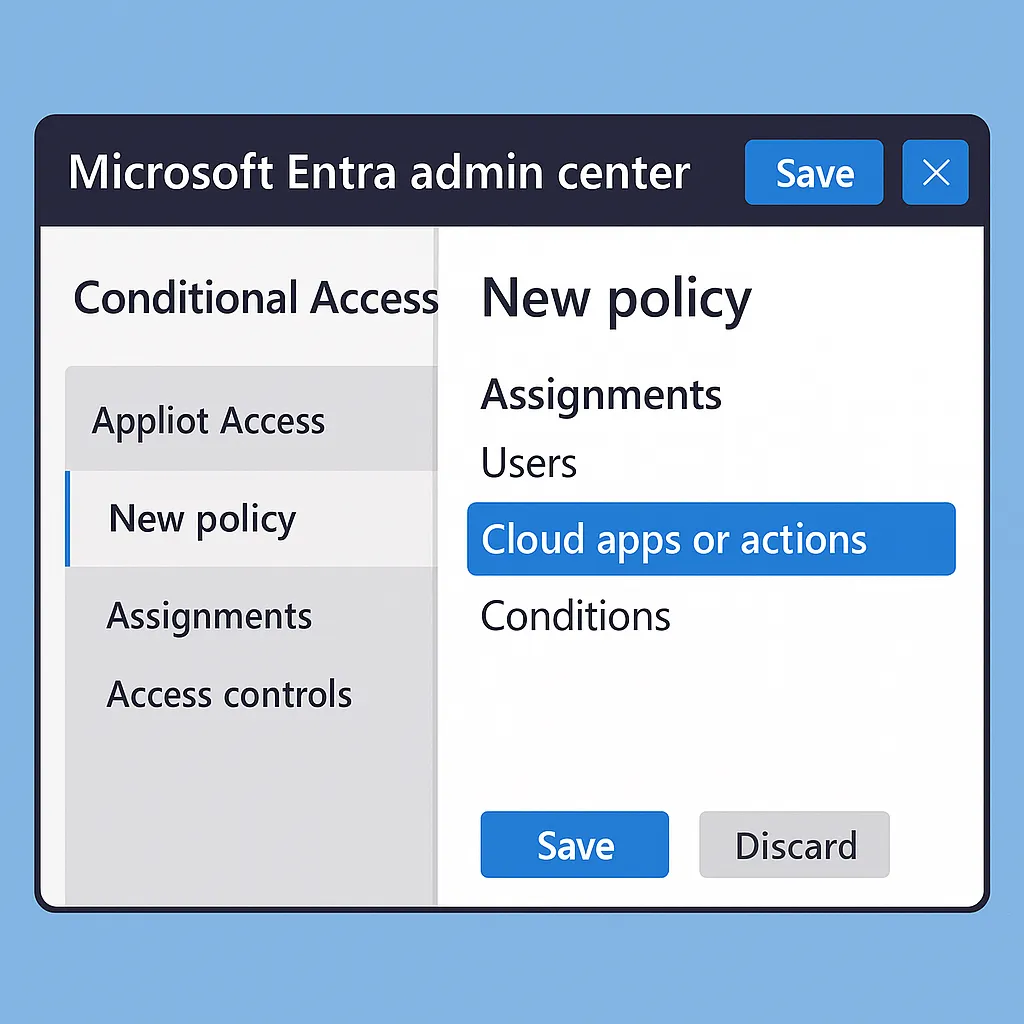
Step 1: Access the Microsoft Entra admin center
- Go to the Microsoft Entra admin center
- Navigate to Protection → Conditional Access
Step 2: Create a new Conditional Access policy
- Click + New policy
- Give your policy a meaningful name (e.g. "Block Legacy Authentication")
- Under Assignments, define the users or groups this policy will apply to
Step 3: Choose cloud apps or actions
- Under Cloud apps or actions, select the applications the policy should affect (e.g. Exchange Online, SharePoint, Teams)
- You can also apply the policy to all cloud apps
Step 4: Set the conditions
Define when the policy applies:
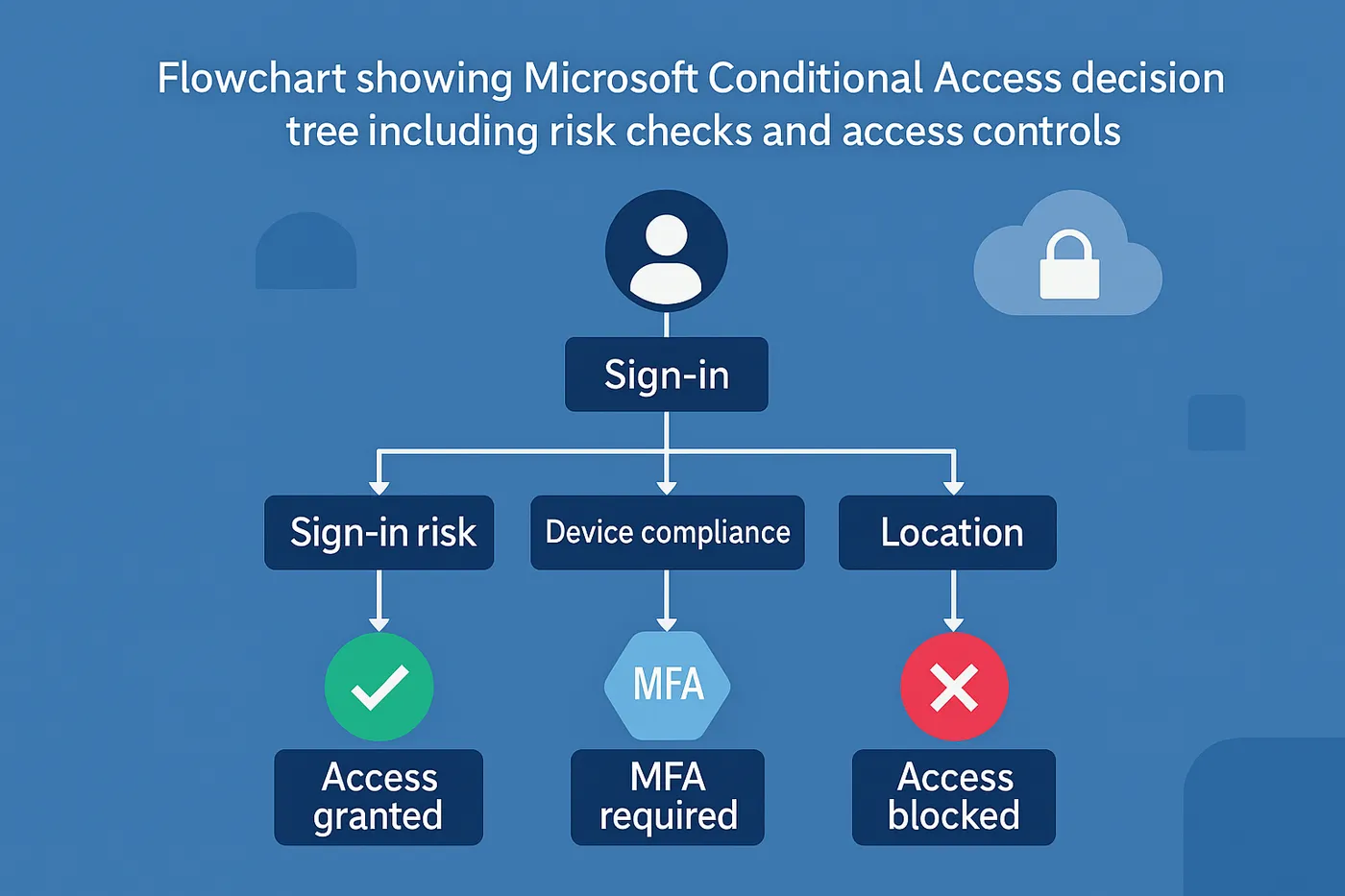
- Sign-in risk — trigger policies based on low, medium or high-risk sign-ins
- Device platforms — target specific operating systems (Windows, Android, iOS)
- Locations — include or exclude locations based on IP ranges
- Client apps — apply rules specific to browser, mobile or desktop clients
Step 5: Configure access controls
Based on the conditions, decide what to enforce:
- Grant access — allow access if conditions are met
- Require MFA — enforce multi-factor authentication
- Require a compliant device — ensure devices are registered and compliant in Microsoft Intune
- Block access — deny access outright under the specified conditions
Step 6: Enable or report-only mode
Test before you enforce — it's best practice:
- Report-only mode — observe how the policy would behave without impacting users
- On — activate the policy once you're confident it works as intended
Step 7: Review and create
Click Create to finalise the policy, then monitor the sign-in logs straight away to see how it's being applied and adjust as needed.
Best practices for Conditional Access in Microsoft 365
- Start with a Zero Trust mindset — assume breach and verify explicitly
- Use named locations judiciously — not all IP addresses are trustworthy by default
- Use report-only mode — test policies before enforcing to avoid accidental lockouts
- Avoid blanket exclusions — cycles of exception handling create security loopholes
- Document your policies — keep things clear for audits and future reviews
Common use cases for Conditional Access
- Require MFA for admins — strengthen your most powerful accounts first
- Block legacy authentication — disable older, less secure protocols
- Restrict access to compliant devices only — enforce endpoint hygiene using Intune
- Restrict geographic access — control data access based on location
Monitoring and troubleshooting
Once your policies are in place, head to Entra admin center → Sign-ins to monitor authentication behaviour. You'll see when Conditional Access rules are triggered and can troubleshoot failed sign-ins from there.
Use the built-in What If tool to simulate user conditions and validate that your policy logic behaves as expected.
Final thoughts
Knowing how to set up Conditional Access policies in Microsoft 365 lets your IT team safeguard user accounts, devices and information. With granular, rule-based policies you can confidently secure your Microsoft environment against modern threats.
Need help developing a future-proof access management strategy? Book a free consultation to see how Circuit Minds can help — we set up Conditional Access as standard on our managed IT support plans.
Want this handled for you?
Circuit Minds is a UK managed IT provider - plans from £35 per user/month, with a free Microsoft 365 security audit to start. Cancel with 30 days notice anytime in your first 3 months, no questions asked.